.svg)


IG Carousel: Local Black Friday Guide
Introduction
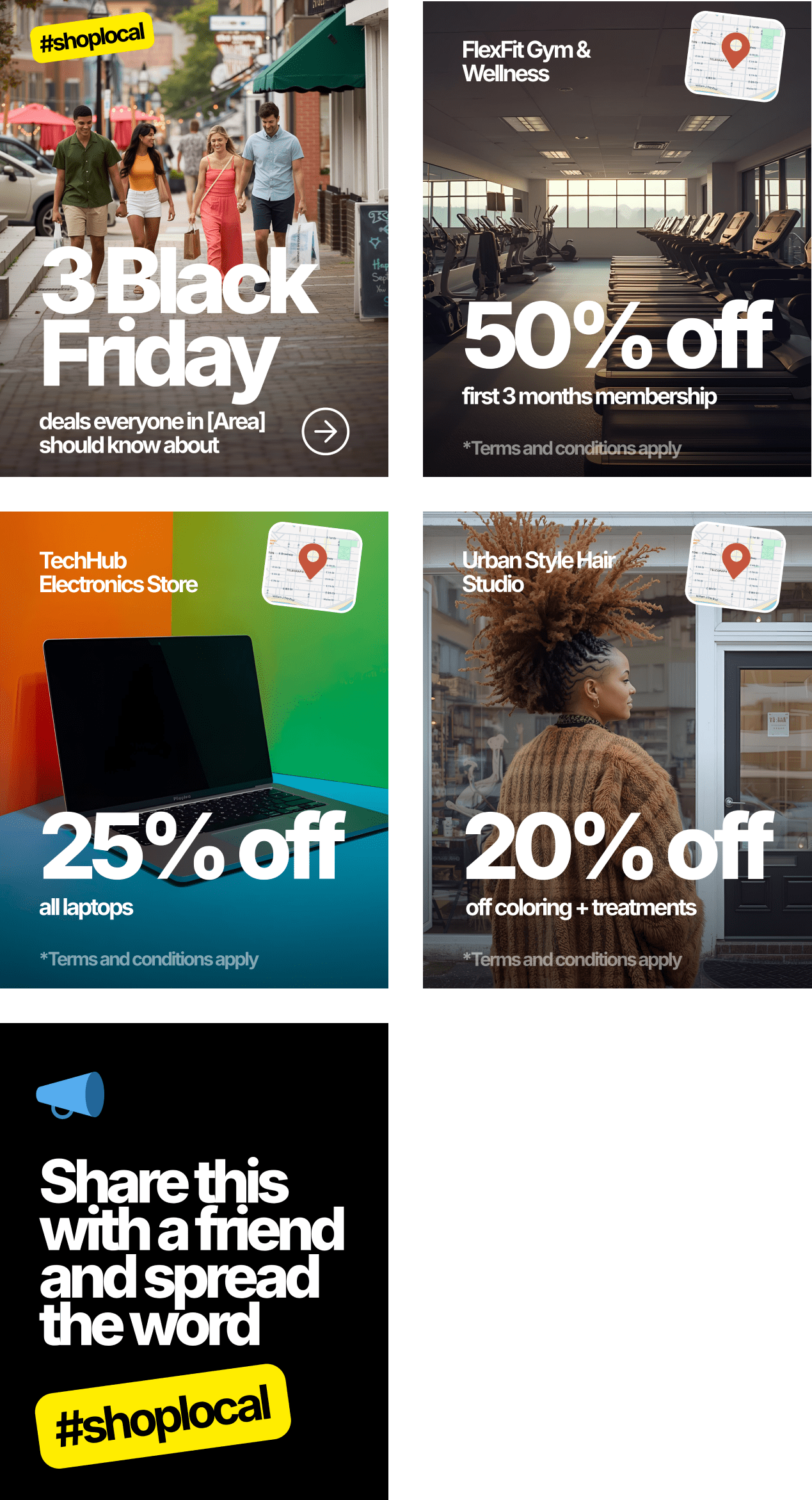
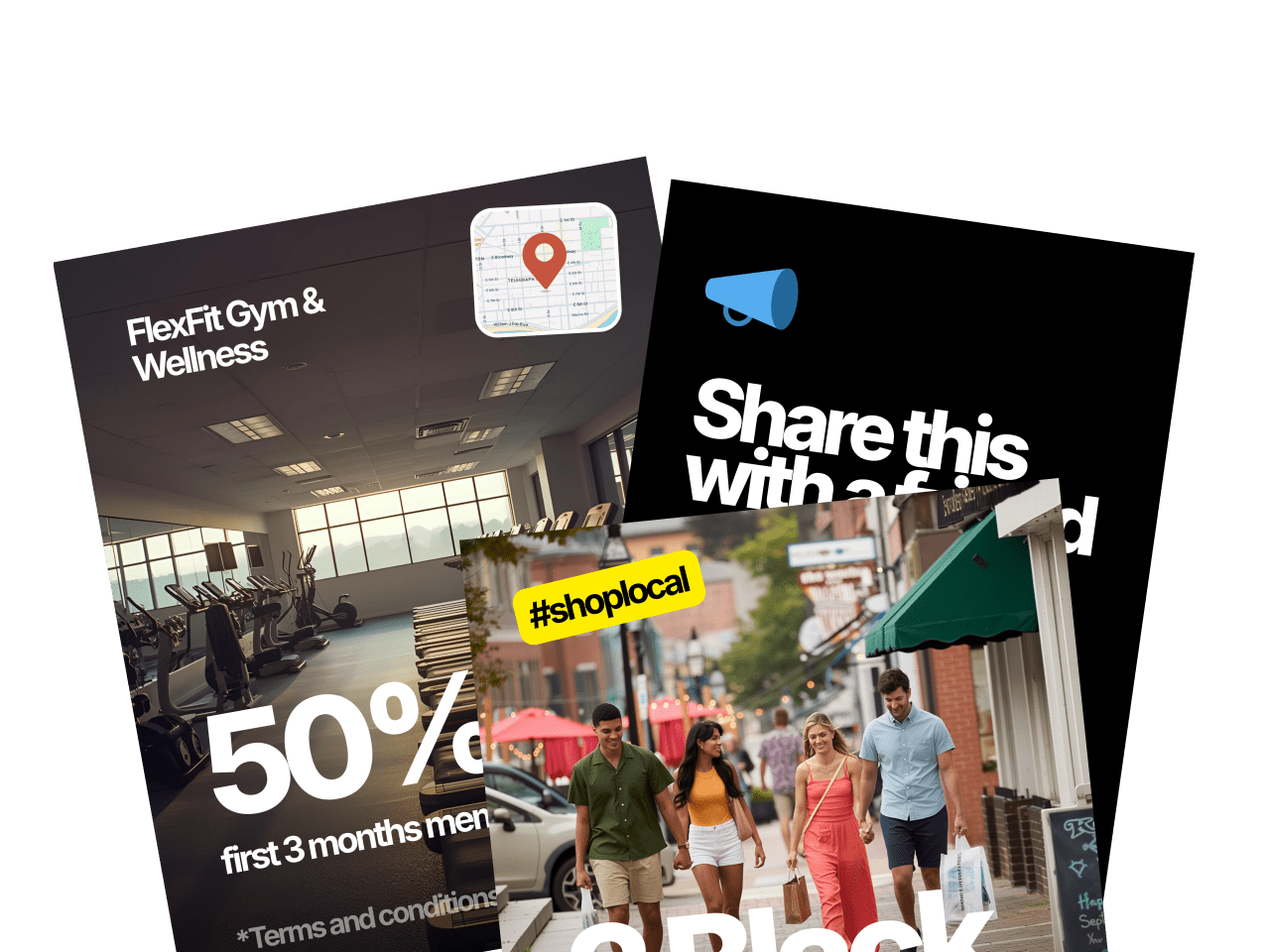
Black Friday is one of the easiest moments of the year to show up as a community leader—not with salesy real estate content, but with something genuinely useful. This carousel does exactly that. You’re spotlighting local businesses, highlighting real deals people care about, and giving your audience a reason to save, shop, and share.
The angle is simple: high-value, low-effort content that positions you as the agent who knows the area and supports the community. You’re not promoting yourself; you’re promoting the businesses your followers already love.
Just plug in the deals, add the business info, and keep it clean. And don’t forget the final slide - it prompts engagement without feeling forced, which helps the post travel further.
This is local expertise in a format that’s fast to build and easy for people to pass along.
Before you get started
For best results with direct mail, you’ll want to have these core lists ready.
Before you send a text, make sure you have these three things in place:
Before you send an email, make sure these three things are in place:
Farm List
This is your core mailing audience—used for general awareness and market education. Build your list using the following filters:
- Homeowners who’ve owned for 10+ years
- 50%+ equity
- Areas with strong total commission opportunity (transaction volume × average price)
Start with 1,000 homes. Expand if it’s working. Need help pulling the list? Ask your title rep or use tools like PropStream or Breakthrough Broker.
Radius Lists
Used for campaigns like Just Listed, Just Sold, Magic Buyer, or Pre-Appointment letters.You’ll need the ability to quickly pull 100–200 nearby homes around a specific property.
Specialty Lists
Used for targeted campaigns like Expired Listings, Silver Tsunami, and FSBOs.
Pull these from platforms like RedX or similar.
An Email Tool
You need a platform that lets you send mass emails to your database. Use what you have—FUB, Follow Up Boss, Mailchimp, KVCore, Constant Contact, etc. If you’re not set up yet, get that handled first. You can’t send if you can’t hit send.
Three Simple Lists
You need three lists:
Prospects
People you haven't done business with.
SOI/Past Clients
People you have.
Entire Database
All contacts.
A Plain Text Format
These emails are written to feel personal, not promotional—so keep them clean. Paste them as-is, with a short signature (your name, number, maybe your site). That’s it.
A CRM That Can Send Texts
Most modern CRMs can do this—Follow Up Boss, Lofty, Brivity, Real Geeks, etc. Use your CRM before buying anything new. You’ll want tracking, history, and batch-sending capabilities.
If you do need a mass texting tool, here’s what we recommend. But start with manual sends if you have to.
Three Simple Lists
Texting is for follow-up. And smart follow-up starts with the right filters.
Prospects
People you haven’t done business with.
SOI/Past Clients
People you have.
Entire Database
All contacts.
Engaged Recently
Opened an email or visited your site in the last 7 days.
Not Contacted Recently
No outreach in 30 days (for prospects) or 90 days (for clients).
A Plain Text Format
These aren’t spam blasts. They’re timely, value-based follow-ups. Use their first name. Skip the signatures.
How to Execute
Customize Canva Templates to Match Your Brand

%201.svg)
Post to Instagram
Send
- Open the Canva template.
- Update colors, fonts, logo/photo to match your brand.
- Customize each slide with your local info, stats, or examples.
- Double-check that the order of slides tells a clear story (Slide 1 = hook, last slide = CTA).
- In Canva, tap Share → Download.
- File type: PNG or JPG.
- Pages: Select All pages (or just the ones you’re using).
- Save to your phone’s camera roll (from the Canva app, AirDrop, email, etc.).
- Open Instagram.
- Tap the “+” icon → choose Post.
- Select the first slide, then tap the “Select multiple” icon.
- Add the rest of the slides in the correct order.
- Tap Next (you can add minimal filters if needed, but usually not necessary for designed graphics).
- Paste or type in your caption
- Add location and relevant hashtags if you use them.
- Tag any relevant accounts (your team, brokerage, local businesses, etc.).
- Tap Share to publish the carousel to your feed.
- Optional: Tap Share again → Add post to your story to give it extra reach (you can add a “New Post” or “Read this” sticker).
Record the Video


.svg)
Post Your Video
.svg)
Video Walkthrough
Examples